Guide · 5 minutes of your time, plus the wait for the team
First pulse from your agent
Install the skill, connect it once, ask the team one question, and get the answers and a report back. After this, "ask the team …" works in every project on this machine.
Install the skill
One line in any terminal. It asks which agent you use and copies the skill into that agent's skills folder.
$ curl -LsSf https://ourpulse.click/install.sh | sh
Where should the OurPulse skill go?
  1) Claude Code                 ~/.claude/skills
  2) Shared .agents folder       ~/.agents/skills   (Codex, Gemini CLI, Copilot, Cursor, OpenCode)
  3) Gemini CLI                  ~/.gemini/skills
  4) GitHub Copilot / VS Code    ~/.copilot/skills
  5) Cursor                      ~/.cursor/skills
  6) OpenCode                    ~/.config/opencode/skills
  7) Another folder
Choice [1]: ⏎
Downloading the OurPulse skill (main)...
Installed OurPulse skill 1.5.0 to ~/.claude/skills/ourpulse
On Windows: irm https://ourpulse.click/install.ps1 | iex. Inside Claude Code the plugin route works too: /plugin marketplace add https://ourpulse.click/marketplace.json, then /plugin install ourpulse@ourpulse. Pick one route, not both.
Ask your first question
Open your agent in any project, Claude Code, Codex, Gemini CLI, Copilot, Cursor or OpenCode, and say what you want to ask, in plain words:
ask the team how each of us uses AI day to day, before the hackathon. 12 people, anonymous, close Thursday 10:00
The skill checks whether this machine is connected. It is not yet, so it starts the sign-in and tells you to approve in the browser.
Agent: Approve the connection in the browser that just opened, then I will continue.
Open this link and press Approve (code DWUN-H3RB):
https://ourpulse.click/cli/verify?code=DWUN-H3RB
Approve in the browser
The page names the agent and the account. Sign in with Google if you are not already, check the code matches the one in the terminal, and press Approve.
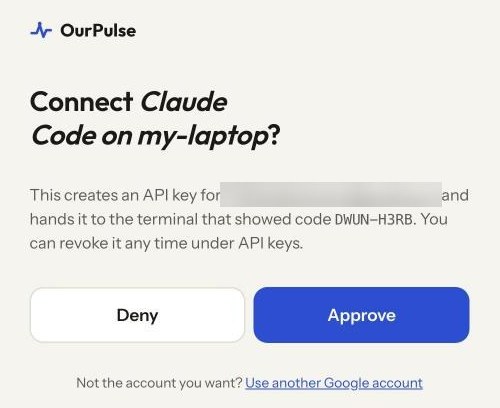
Wrong account? Use the link under the buttons to switch Google accounts before approving.
Check the draft and say yes
Back in the terminal the skill continues on its own. It shows the pulse it is about to create, with the account it will use and the times in your zone.
Pulse: AI in my daily work
Account: [email protected] (global)
Opens:  now
Closes: Thu 1 Oct, 10:00 EEST  (2 days)
Access: anyone with the link · pseudonyms · one answer per browser
Expected: 12 people

1. [multi]   In which stages do you use AI every week?  — Ticket / requirements / Design / Writing new code / Changing existing code / Tests / Debugging / Code review / Docs / Ops / None of these
2. [multi]   Of the stages you use AI in, where do you let it do the work and only check the outcome?  — same list
3. [multi, up to 3]  Where does AI let you down most?  — same list
4. [multi, up to 3]  What stops you from using AI more?  — Usage limits / No access to the model I want / Output not reliable enough / It doesn't know our codebase / Checking costs more than it saves / Unsure what I may share / No time to learn / Doesn't help my kind of work / Something else / Nothing
5. [single]  Which stage would you hand over to AI next?  — same list
6. [text]    The last time AI wasted your time or surprised you: what happened?

Create it?
Nothing exists until you answer. Say yes, or change something first, for example "drop question 2" or "close Thursday 9:00".
Share the link or the QR
You get the link, the QR and the live results page. Paste the link into Slack, Teams or mail and it unfurls with the title, the window and the QR. For the hackathon the link went into the invitation email. Say yes to the invite screen when you are in a room with a projector.

Get the answers back
The skill waits for the close, or tells you how to come back later. When it closes you get a six-line summary in the chat, and the owner page shows the same numbers.
AI in my daily work · closed Thu 1 Oct 10:00 · 10 of 12 answered
Use AI every week: Writing new code 10 · Changing existing code 10 · Tests 10 · Docs 9
Hand over and only check: Tests 9 · Docs 8
Lets you down most: Writing new code 9 · Changing existing code 7 · Debugging 3
Stops you: Usage limits 5 · Nothing 4
Comments (8): most describe the model looping or confidently wrong on a hard issue.
Finding: everyone uses it for new code, and that is also where it fails most.
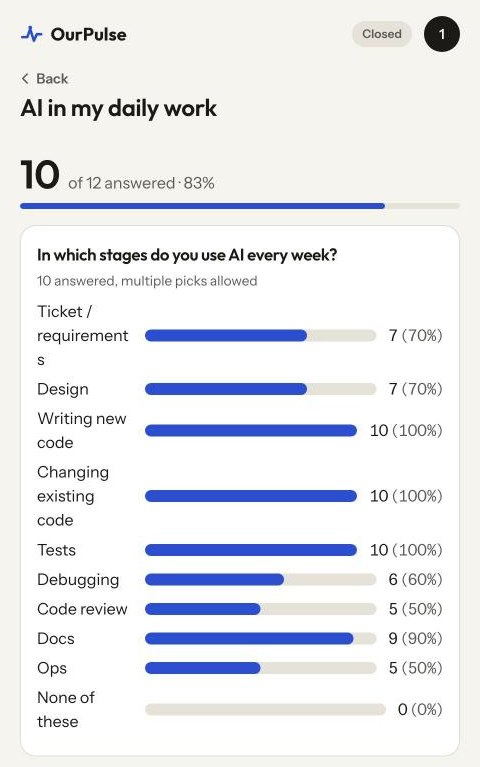
The answers are now in your session, so keep asking: "do the people stopped by quota also say they would hand over tests next?"
Write the report and push it
When the numbers need to reach people who were not in the chat, say:
write the report and push it
The skill reads the results and the comments, asks one question, and opens a preview in your browser.
Agent: Include quotes from the comments? Comments are anonymous, but a teammate
may recognise an incident or a way of writing. On no, you get themes and counts only.
You: no quotes

Agent: Report: AI in my daily work
Account: [email protected] (global)
Contents: 4 key numbers · 5 charts · 4 comment themes, no quotes · 3 actions
Preview: open in your browser
Sharing: only you get the link. Anyone you give it to can read the report without signing in.

Push it?
You: yes
Agent: Pushed. https://ourpulse.click/r/report/…
Ask for changes before saying yes: "lead with the quota finding", "drop the actions". Each change reopens the preview.
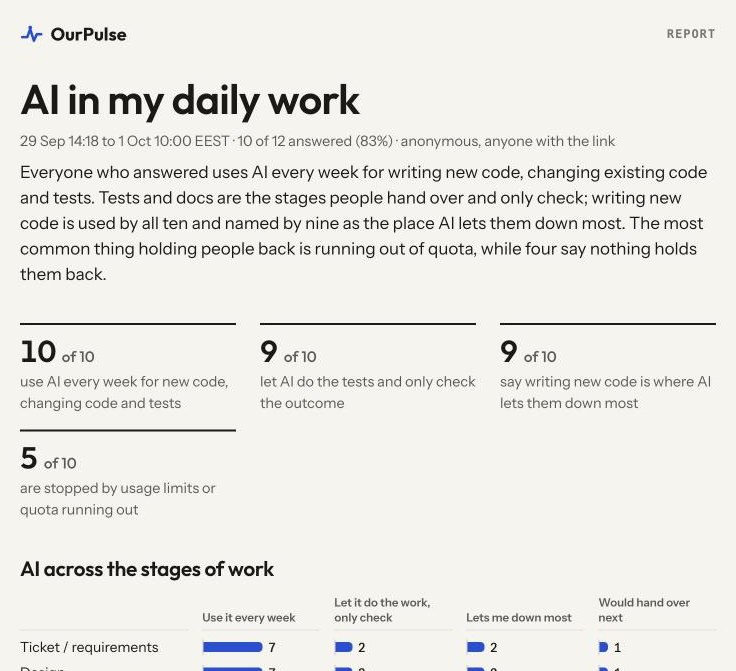
Only you receive the link. Pushing again replaces the report and keeps the link. The owner pulse page shows a Report card with copy, open and remove. Want a file in the repo instead? Say "write it up in docs/retro.md" and nothing is pushed.
That was the only setup
The key is saved under ~/.config/ourpulse/, never in the project. Revoke it any time at ourpulse.click/me/keys. To use a work account in one repo, say "use another account in this folder".